


Whether I later want to run TensorRT-LLM, Ollama, vLLM, or any other container-based inference framework on my server, the base installation is always the same: an up-to-date Ubuntu, the matching NVIDIA driver, Docker, and the NVIDIA Container Toolkit so that containers can even access the GPU in the first place.
In this post I’ll show you my own setup script server_setup.sh, which handles this base installation on a fresh Ubuntu 24.04 in one go. The script is the foundation I link back to in all my other inference posts — work through it once here, and you’ll have the platform ready for any further AI project.
What you need
- A server or workstation with an NVIDIA GPU
- A freshly installed Ubuntu 24.04 LTS (server or desktop variant, doesn’t matter)
- An internet connection (the script pulls several GB of packages)
- At least 30 GB of free storage for the base installation (for container images and models later, considerably more)
- A non-root user with
sudorights
What the script does
The script runs in six clearly separated steps:
- System update: bring all existing packages up to date
- OpenSSH server: so you can later run the server headless
- Base packages: curl, git, gnupg, Midnight Commander, and a few helpers
- NVIDIA CUDA Toolkit 13.1 + driver: the GPU layer
- Docker: container runtime from the official Docker repo
- NVIDIA Container Toolkit: the bridge that lets Docker containers access the GPU
At the end, a reboot is due — then the server is ready for any container-based inference stack.
Why these components?
NVIDIA CUDA Toolkit on the host, even though we use containers?
This sounds contradictory at first, because container-based inference frameworks bring their own CUDA version inside the image. Still, I install the CUDA Toolkit on the host. Two reasons:
- First, the
cuda-driverspackage brings the matching NVIDIA driver along automatically. You absolutely need it on the host — the driver userspace (libcuda.so) is also used by containers, because GPUs cannot be containerized. - Second, it’s practical to have the CUDA Toolkit natively at hand — for occasional quick tests with
nvcc,nvidia-smi, and similar tools, without spinning up an extra container.
I picked the version CUDA 13.1 because it was the most stable current version at the time of writing the script. If you run the script later, briefly check beforehand whether there’s a newer version — at NVIDIA this changes on a half-year rhythm.
Docker from the official repo, not from Ubuntu
Ubuntu ships the package docker.io in its standard repos. It works in principle, but is usually significantly older than what Docker itself publishes. More importantly: the official packages bring Docker Compose as a plugin directly along, which isn’t the case with docker.io. You’ll need Compose practically right away as soon as you do multi-container setups or persistence with volumes.
NVIDIA Container Toolkit — the most important component
This is the connecting piece without which Docker containers can do nothing with your GPU. The toolkit reconfigures Docker in such a way that the command docker run --gpus all ... actually works and the container gets access to the GPU devices and the NVIDIA driver.
In the script I pin the version to 1.19.0-1. There’s a pragmatic reason for this: updates of the NVIDIA Container Toolkit have occasionally broken setups of mine in the past, because the API was no longer compatible with certain driver versions. With a pinned version the setup stays reproducible — and I consciously decide when to update.
Getting and running the script
Download the script server_setup.sh from my GitHub repository:
Here’s the link to the script on GitHub: tensorrt-llm-edge-prep-script
Save it on the freshly installed server. I always create a folder called scripts, which on my machine typically sits in the home directory:
Then the script has to be made executable with the following command.
Command: chmod +x server_setup.sh
Please read the script through once before you run it. With system setup scripts, “I know exactly what’s going to happen” is a good habit. With the following command you run the script.
Command: ./server_setup.sh
Important: Do not run as root. The script checks for this and aborts otherwise. It uses sudo where it needs root rights, but keeps the normal user context.
Depending on your internet connection the whole thing takes 5–15 minutes. At the end the completion message appears with a note about the required reboot.
Reboot and verification
After the script, a restart is mandatory. Both because of the freshly installed NVIDIA driver and because of the Docker group membership (which only becomes active on a new login):
sudo rebootAfter the reboot, three short tests to check whether everything works together cleanly:
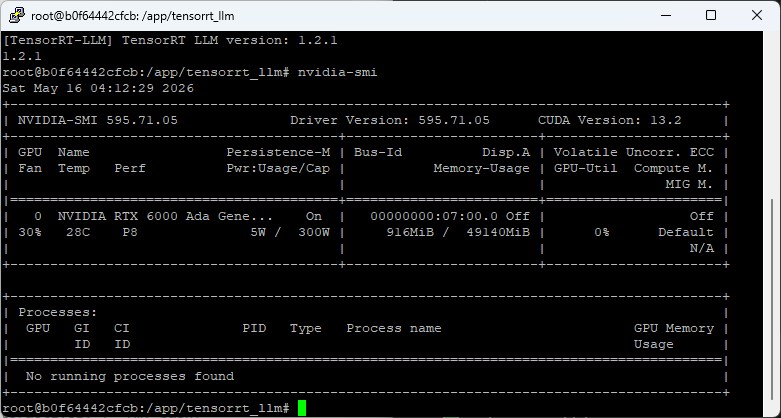
Are the GPU and the driver visible?
Command: nvidia-smi
 The familiar view should appear with your GPU, driver version, and memory usage

NVIDIA SMI Screen
Now the test whether Docker also works without the sudo command? Command:docker run hello-worldYou should now see a response like"Hello from Docker!"as a greeting. No permission errors should appear. Is the Container Toolkit installed? The check is done with the following command. Command:nvidia-ctk --versionA version output like"NVIDIA Container Toolkit CLI version 1.19.0"should now appear. The probably most important test now — can the container access the GPU? Command:docker run --rm --gpus all ubuntu:24.04 nvidia-smiThe same nvidia-smi table as on the host should now appear here as well, only this time from inside the container
If all four tests pass, you have a fully functional GPU container platform. That is the foundation on which any of the common inference frameworks is now runnable.
Typical stumbling blocks
Two problems I’ve come across with various installations over the years:
1. The Nouveau driver blocks the NVIDIA driver.
With some Ubuntu installations the kernel automatically loads the open-source Nouveau driver, which then blocks the NVIDIA driver. Symptom: after the reboot nvidia-smi throws “NVIDIA-SMI has failed because it couldn’t communicate with the NVIDIA driver”. One possible solution can look like this:
Command: echo "blacklist nouveau" | sudo tee /etc/modprobe.d/blacklist-nouveau.conf
Command: echo "options nouveau modeset=0" | sudo tee -a /etc/modprobe.d/blacklist-nouveau.conf
Command: sudo update-initramfs -u
Command: sudo reboot
After the restart, nvidia-smi should then work.
2. “docker permission denied” despite a correct installation. You were indeed added to the Docker group, but your current shell session doesn’t know about it yet. Solution: log out and log back in — or simply reboot the entire server, as recommended at the end of the script.
What isn’t in the script (and why)
Deliberately not included are a few things that every admin wants to decide individually:
- Static IP configuration: depends on your home network; better done manually via Netplan
- Firewall rules: depends on what you’ll be serving later (HTTP, SSH tunnel, OpenAI API)
- Samba: I used to have it in there, but it’s superfluous for a pure inference server
If you need these things, please set them up yourself after the restart. The script thus stays lean, reproducible, and focused on its actual purpose: GPU + container platform.
If you have improvements to the script or need a different CUDA/Toolkit version — pull request on GitHub or a comment here; I’m happy about feedback.
Article overview - TensorRT-LLM on the RTX A6000 Ada:
Preparing an Ubuntu 24.04 Server for AI Inference: CUDA, Docker, NVIDIA Container ToolkitTensorRT-LLM on the RTX A6000 Ada: Preparing for the Edge-LLM Ecosystem
TensorRT-LLM on Ubuntu 24.04: Setup with Docker and Helper Scripts
TensorRT-LLM Pipeline: Building Persistent Engines with FP16 and FP8
TensorRT-LLM in Numbers: FP16 vs. FP8 on the RTX A6000 Ada




The tutorial offers a clear and practical guide for setting up and running the Tensorflow Object Detection Training Suite. Could…
This works using an very old laptop with old GPU >>> print(torch.cuda.is_available()) True >>> print(torch.version.cuda) 12.6 >>> print(torch.cuda.device_count()) 1 >>>…
Hello Valentin, I will not share anything related to my work on detecting mines or UXO's. Best regards, Maker
Hello, We are a group of students at ESILV working on a project that aim to prove the availability of…