


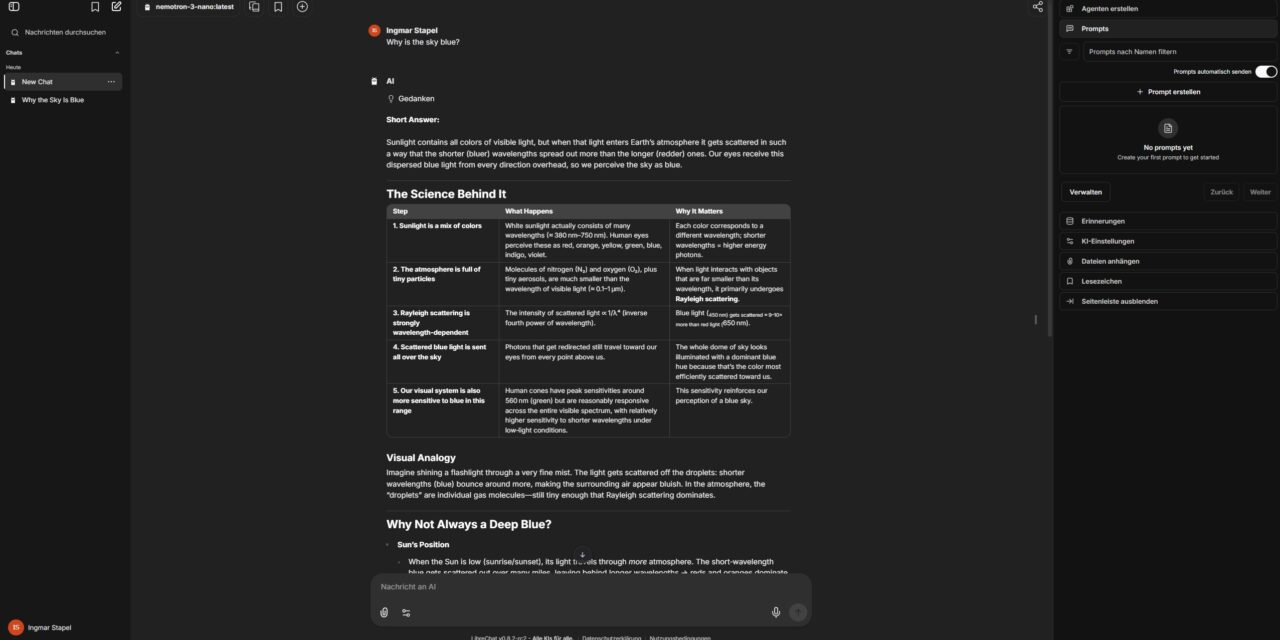
After showing in my previous posts how to install Ollama, Open WebUI, ComfyUI, LLaMA Factory, vLLM, and LM Studio on the Gigabyte AI TOP ATOM, here comes another interesting alternative for everyone looking for a professional chat interface with advanced features like RAG (Retrieval-Augmented Generation), multi-user support, and a plugin system: LibreChat is an open-source alternative to ChatGPT with extensive configuration options and support for local Ollama models.
In this post, I will show you how I installed LibreChat on my Gigabyte AI TOP ATOM and configured it to work with the already running Ollama server. Since the system is based on the same platform as the NVIDIA DGX Spark and utilizes the ARM64 architecture (aarch64) with the NVIDIA Grace CPU, the official containers work excellently as long as you make a few specific adjustments for the ARM architecture. It didn’t work quite easily out of the box, but with my guide here, you should have everything set up in about 30 minutes. Most of those 30 minutes will be spent downloading the container images at least that’s how it was for me since my internet isn’t that fast.
Note: For my experience reports here on my blog, I was loaned the Gigabyte AI TOP ATOM by the company MIFCOM.
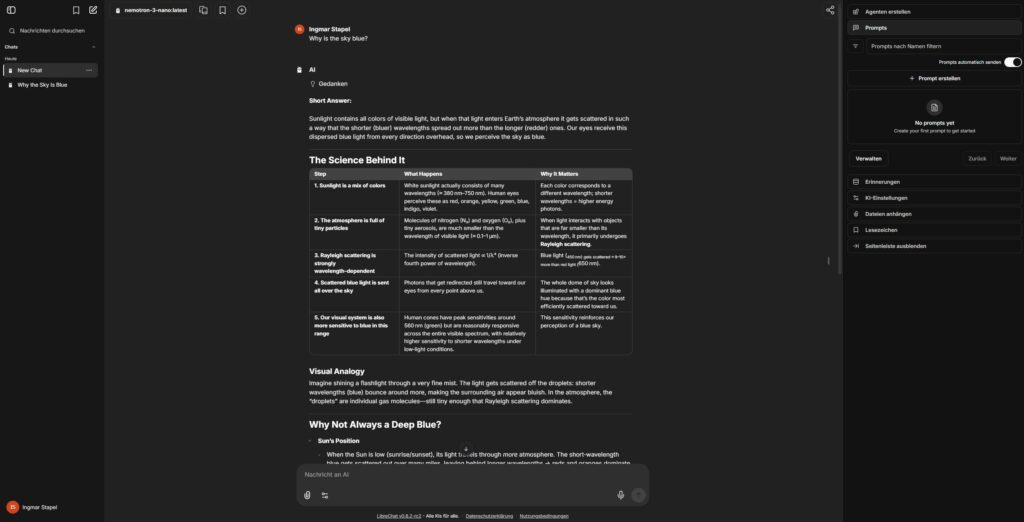
LibreChat Gigabyte AI TOP ATOM
The Basic Idea: Professional Chat Interface with Advanced Features
LibreChat is a fully self-hosted alternative to ChatGPT with functions like RAG for document integration and multi-user support. The system consists of several containers: an API server, MongoDB for the database, Meilisearch for search, and PostgreSQL/pgvector for RAG functionality.
The special thing about the AI TOP ATOM: Docker Compose automatically recognizes the aarch64 architecture. However, since the latest version of MongoDB often expects specific CPU instructions (AVX) that can lead to problems on ARM clusters, I’ll show you the path via the more stable Version 6.0 for the DGX Spark architecture.
What you need:
- A Gigabyte AI TOP ATOM (or comparable Grace system with ARM64/aarch64 architecture)
- Ollama already installed (see my previous blog post)
- Docker and Docker Compose
- Terminal access (SSH or direct)
- Git for cloning the repository
- Several Ollama models already downloaded (e.g., ministral-3:14b, qwen3:4b, qwen3:30b-thinking, qwen3-coder:30b, deepseek-ocr:latest, gpt-oss:20b)
Phase 1: Check System Requirements
First, we check in the terminal whether the architecture and Docker are correctly available:
Check architecture: uname -m (should output aarch64)
Check Docker: docker compose version
Phase 2: Clone LibreChat Repository
We create a directory and download the current code from GitHub:
Command: mkdir -p ~/librechat && cd ~/librechat
Command: git clone https://github.com/danny-avila/LibreChat.git .
Phase 3: Prepare Directories and Set Permissions (Important!)
This step is critical to avoid permission errors on ARM systems!
Create the required directories:
Command: mkdir -p data/db data/meili logs images uploads
Set the correct ownership and permissions:
Command: sudo chown -R 1000:1000 data logs images uploads
Command: sudo chmod -R 775 data logs images uploads
Why this is important: Without these permissions, the MongoDB and Meilisearch containers cannot write to the data directories on ARM systems.
Phase 4: Configure Environment Variables (.env)
Copy the example environment file:
Command: cp .env.example .env
Generate security keys:
For LibreChat to start, we must fill the keys in the .env. This is the fastest way:
Command: sed -i "s/CREDS_KEY=.*/CREDS_KEY=$(openssl rand -hex 32)/" .env
Command: sed -i "s/CREDS_IV=.*/CREDS_IV=$(openssl rand -hex 16)/" .env
Command: sed -i "s/JWT_SECRET=.*/JWT_SECRET=$(openssl rand -hex 32)/" .env
Command: sed -i "s/JWT_REFRESH_SECRET=.*/JWT_REFRESH_SECRET=$(openssl rand -hex 32)/" .env
Tip for the AI TOP ATOM: Set your user IDs in the .env to avoid permission errors:
Command: echo "UID=$(id -u)" >> .env && echo "GID=$(id -g)" >> .env
Phase 5: The ARM Fix for MongoDB & Meilisearch
Here comes the most important part for the AI TOP ATOM. The standard configuration of LibreChat uses MongoDB 8.0, which often leads to crashes on the Grace CPU (ARM64). We are switching the system to the more stable version 6.0.
Open the docker-compose.yml:
Command: nano docker-compose.yml
Find the mongodb: section and adjust the image and user tag:
  mongodb:
    container_name: chat-mongodb
    image: mongo:6.0  # IMPORTANT: Version 6.0 for ARM stability
    restart: always
    user: "1000:1000" # Prevents permission errors
    volumes:
      - ./data/db:/data/db
    command: mongod --noauth
The same applies to Meilisearch. Ensure that a fixed user is also defined here so that the search indices can be written:
  meilisearch:
    container_name: chat-meilisearch
    image: getmeili/meilisearch:v1.12.3
    user: "1000:1000"
    environment:
      - MEILI_HOST=http://0.0.0.0:7700
      - MEILI_MASTER_KEY=${MEILI_MASTER_KEY}
    volumes:
      - ./data/meili:/meili_data
Important changes:
- Changed MongoDB image from default (8.0) to
mongo:6.0 - Added
user: "1000:1000"to both services (MongoDB and Meilisearch) - This ensures that containers run with correct permissions on ARM systems
Phase 6: Configuration for Ollama (librechat.yaml)
We copy the example configuration and adjust it:
Command: cp librechat.example.yaml librechat.yaml
Command: nano librechat.yaml
Add your Ollama models under endpoints: custom:. The baseURL is important:
endpoints:
  custom:
    # Ollama Local Models
    - name: 'Ollama'
      apiKey: 'ollama'
      baseURL: 'http://host.docker.internal:11434/v1/'
      models:
        default:
          - 'ministral-3:14b'
          - 'qwen3:4b'
          - 'qwen3:30b-thinking'
          - 'qwen3-coder:30b'
          - 'deepseek-ocr:latest'
          - 'gpt-oss:20b'
        fetch: true
      titleConvo: true
      titleModel: 'current_model'
      summarize: false
      summaryModel: 'current_model'
      forcePrompt: false
      modelDisplayLabel: 'Ollama'
Note: host.docker.internal is mandatory so that the container can reach the Ollama service on the host.
Important configuration notes:
baseURL: Must usehost.docker.internalinstead oflocalhostwhen LibreChat runs in DockerapiKey: Set to ‘ollama’ (required, but ignored by Ollama)fetch: true: Automatically discovers new models added to OllamatitleModel: 'current_model': Prevents multiple models from being loaded simultaneously
Phase 7: Create Docker Compose Override File
The standard docker-compose.yml of LibreChat does not mount the librechat.yaml by default. We create an override file to include it:
Create file: docker-compose.override.yaml
# Docker Compose override file to mount librechat.yaml configuration
services:
  api:
    volumes:
      # Mount the librechat.yaml configuration file
      - ./librechat.yaml:/app/librechat.yaml
Why this was necessary: Without this mount, LibreChat could not read the configuration file and displayed the error: ENOENT: no such file or directory, open '/app/librechat.yaml'
Phase 8: Verify Ollama Service
Check if Ollama is running and accessible:
Command: systemctl status ollama
Command: ollama list
Command: curl http://localhost:11434/api/tags
Phase 9: Start LibreChat
After correcting the paths and versions, we restart the container structure. Docker Compose will now automatically download the appropriate ARM64 images for the selected versions:
Command: docker compose up -d
Check the status after about 20 seconds:
Command: docker compose ps
If a friendly Up appears in the STATUS column for all containers (api, mongodb, meilisearch, rag_api, vectordb), the installation was successful.
If the start failed initially:
If the librechat.yaml was not mounted, restart after creating the override file:
docker compose down
docker compose up -d
Phase 10: Remove Unwanted Endpoints (Optional)
If you don’t need other providers (Groq, Mistral, OpenRouter, Helicone, Portkey), remove them from the librechat.yaml:
Edit file:
Command: nano librechat.yaml
Remove all custom endpoint configurations except Ollama from the endpoints.custom section.
Restart to apply the changes:
Command: docker compose restart api
Phase 11: Access and First Test
Open in your browser: http://<IP-ADDRESS-ATOM>:3080 (or http://localhost:3080). Create the first account (this will automatically be Admin). You will now find your Ollama instances under the models. A short test like “Why is the sky blue?” will immediately show you the power of local GPU acceleration.
Troubleshooting Tips
- Permission Denied: Check if the
dataandlogsfolders really belong to user 1000 (sudo chown -R 1000:1000 data logs images uploads). - MongoDB Loop: If MongoDB keeps restarting, ensure you are using version 6.0 in the YAML and that no old data residues remain in the
datafolder. - Ollama Endpoint does not appear: Check if the
librechat.yamlis correctly mounted. Check logs withdocker compose logs api | grep -i ollama. - Containers do not start: Check if all directories exist and permissions are correct. If necessary, delete old containers and volumes:
docker compose down -v(Caution: deletes data!).
Summary & Conclusion
LibreChat on the Gigabyte AI TOP ATOM is an extremely powerful combination. Thanks to the 256GB Unified Memory of the Grace Hopper architecture (or the massive VRAM of your AI TOP setups), you can use even huge models with a professional interface in a team. The RAG functionality also makes the system the ideal local knowledge base for sensitive documents.
The most important success factors on ARM systems:
- Use MongoDB Version 6.0 instead of 8.0
- Set directory permissions correctly before starting
- Add user tags in docker-compose.yml to the services
- Ensure all required directories exist with correct ownership rights
Changed/Created Files:
librechat.yaml– Added Ollama endpoint configuration, removed other providersdocker-compose.override.yaml– Created to mount the config filedocker-compose.yml– Changed MongoDB to version 6.0 and added user tags for ARM stability.env– Security keys generated and UID/GID added
Running Docker Containers:
- LibreChat (api container) – Port 3080
- MongoDB 6.0 (chat-mongodb) – ARM-stable version
- Meilisearch (chat-meilisearch) – With correct user permissions
- PostgreSQL with pgvector (vectordb)
- RAG API (rag_api)
Good luck experimenting! Have you used LibreChat for RAG with your own PDFs yet? Let me know in the comments!“`




The tutorial offers a clear and practical guide for setting up and running the Tensorflow Object Detection Training Suite. Could…
This works using an very old laptop with old GPU >>> print(torch.cuda.is_available()) True >>> print(torch.version.cuda) 12.6 >>> print(torch.cuda.device_count()) 1 >>>…
Hello Valentin, I will not share anything related to my work on detecting mines or UXO's. Best regards, Maker
Hello, We are a group of students at ESILV working on a project that aim to prove the availability of…