After showing how to install Ollama, Open WebUI, and ComfyUI on the Gigabyte AI TOP ATOM in my previous posts, now comes something for everyone who wants to adapt their own language models and make them individual: LLaMA Factory – an open-source framework that simplifies the fine-tuning of Large Language Models and supports methods such as LoRA, QLoRA, and Full Fine-Tuning. For my field reports, I was loaned a system by the company MIFCOM, a specialist for high-performance and gaming computers from Munich.
In this post, I will show you how I installed and configured LLaMA Factory on my Gigabyte AI TOP ATOM to adapt language models like LLaMA, Mistral, or Qwen for specific tasks. LLaMA Factory utilizes the full GPU performance of the Blackwell architecture and allows you to train models using various fine-tuning methods. Mind you, everything is intended to run locally on your own AI TOP ATOM or your own NVIDIA DGX Spark. Since Gigabyte’s AI TOP ATOM system is based on the same platform as the NVIDIA DGX Spark, the official NVIDIA playbooks work just as reliably here.
The Basic Idea: Adapting Your Own Language Models for Special Tasks
Before I dive into the technical details, an important point: LLaMA Factory is a framework that significantly simplifies the fine-tuning of Large Language Models. Unlike complex manual setups, LLaMA Factory offers a unified interface for various fine-tuning methods such as Supervised Fine-Tuning (SFT), Reinforcement Learning from Human Feedback (RLHF), and Quantized LoRA (QLoRA).
The special thing about it: LLaMA Factory supports a wide range of LLM architectures such as LLaMA, Mistral, Qwen, and many more. You can adapt your models for specific domains – whether for code generation, medical applications, or special corporate requirements. Installation is done via Docker using the NVIDIA PyTorch container, which already includes CUDA support and all necessary libraries.
What you need for this:
-
A Gigabyte AI TOP ATOM, ASUS Ascent, MSI EdgeXpert (or NVIDIA DGX Spark) connected to the network
-
A connected monitor or terminal access to the AI TOP ATOM
-
Docker installed and configured for GPU access
-
Basic knowledge of terminal commands, Docker, and Python
-
At least 50 GB of free storage space for models, checkpoints, and training data
-
An internet connection to download models from the Hugging Face Hub
-
Optional: A Hugging Face account for gated models (models with access restrictions)
Phase 1: Check System Requirements
For the rest of my instructions, I am assuming that you are sitting directly in front of the AI TOP ATOM or the NVIDIA DGX Spark with a monitor, keyboard, and mouse connected. First, I check whether all necessary system requirements are met. To do this, I open a terminal on my AI TOP ATOM and execute the following commands.
The following command shows you if the CUDA Toolkit is installed:
Command: nvcc --version
You should see CUDA 12.9 or higher. Next, I check if Docker is installed:
Command: docker --version
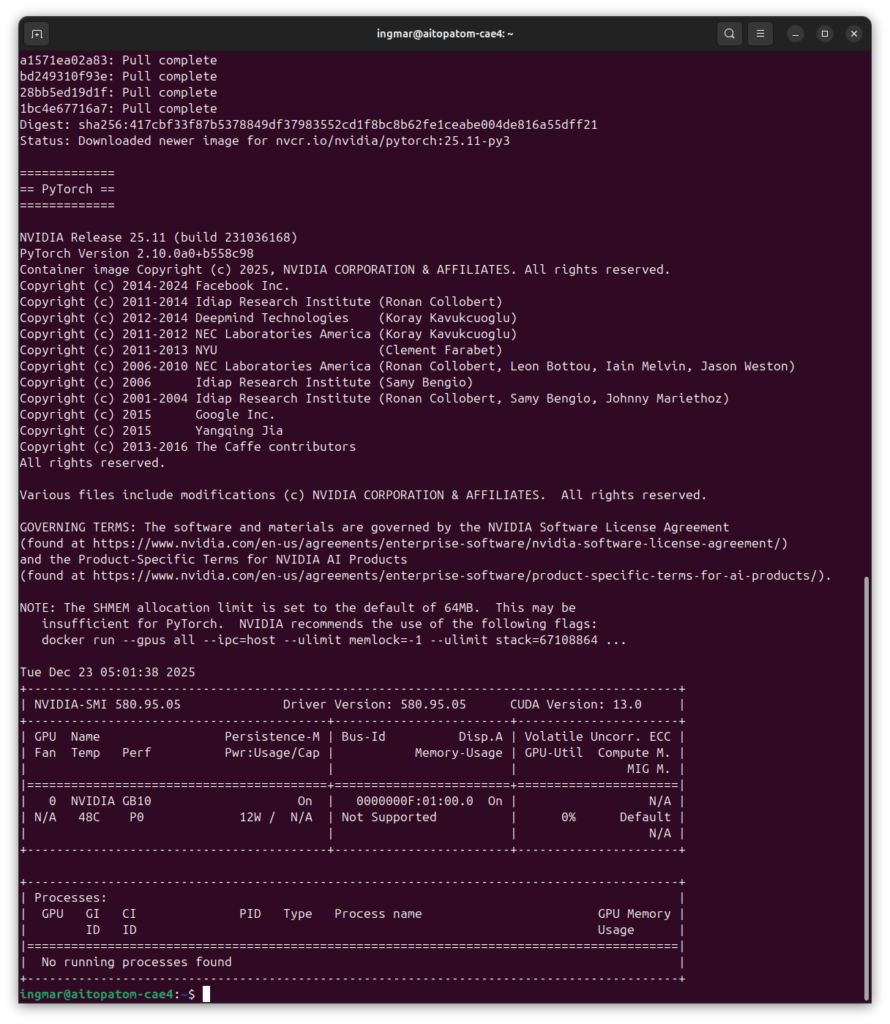
Now I use the following command to check if Docker has GPU access. A few GB will be downloaded, but you will save that time later because the same Docker container is required for LLaMA Factory.
Command: docker run --gpus all nvcr.io/nvidia/pytorch:25.11-py3 nvidia-smi
This command starts a test container and displays the GPU information. If Docker is not yet configured for GPU access, you must set that up first. Also check Python and Git:
Command: python3 --version
Command: git --version
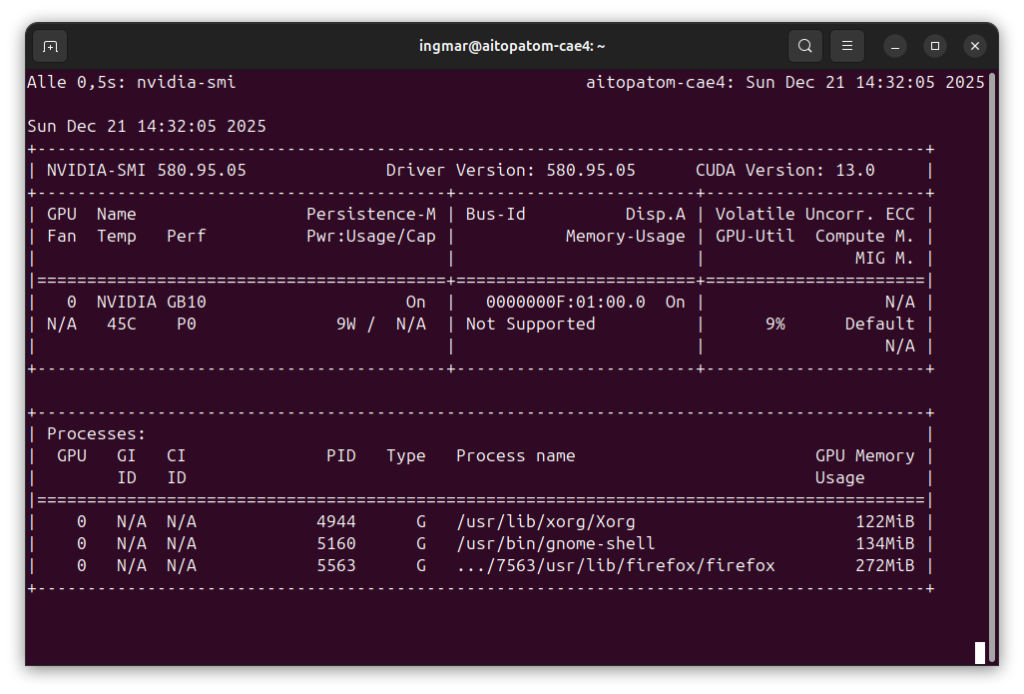
And finally, I check if the GPU is detected:
Command: nvidia-smi
You should now see the GPU information. If any of these commands fail, you must install the corresponding components first.
Phase 2: Start NVIDIA PyTorch Container with GPU Support
LLaMA Factory runs in a Docker container that already contains PyTorch with CUDA support. This makes installation much easier, as we don’t have to worry about Python dependencies. First, I create a working directory:
Command: mkdir -p ~/llama-factory-workspace
Command: cd ~/llama-factory-workspace
NVIDIA PyTorch Container:
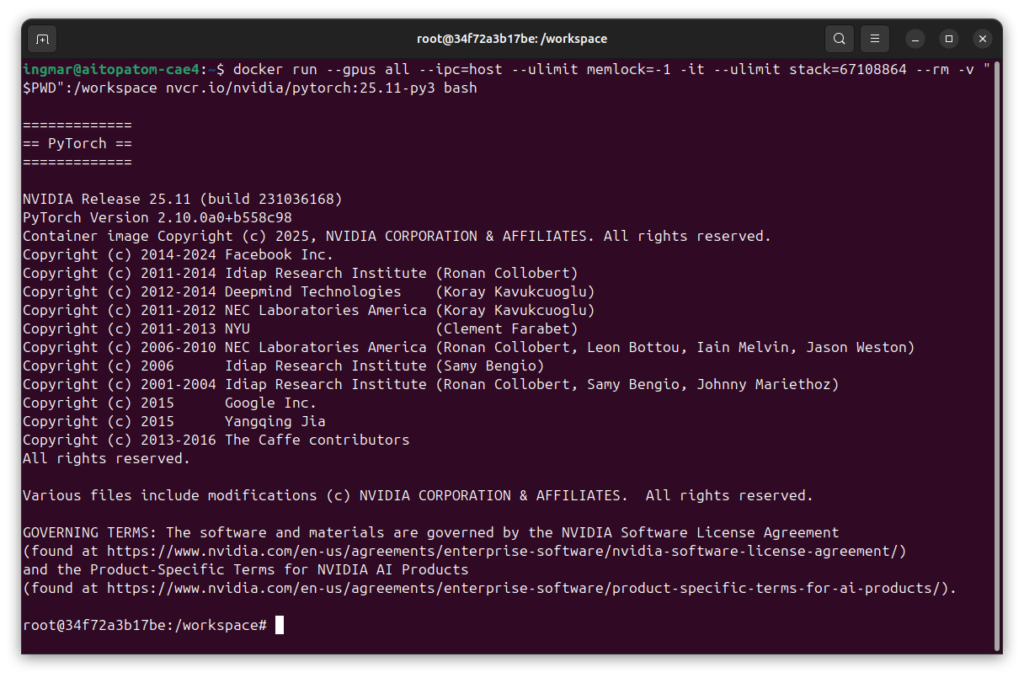
Next comes the exciting part of the project. Now I start the NVIDIA PyTorch container with GPU access and mount the working directory. Important: I use a name for the container (--name llama-factory) and omit --rm so that the container is preserved even after a restart:
Command: docker run --gpus all --ipc=host --ulimit memlock=-1 -it --ulimit stack=67108864 --name llama-factory -p 7862:7860 -v "$PWD":/workspace nvcr.io/nvidia/pytorch:25.11-py3 bash
This command starts the container and opens an interactive bash session. The container supports CUDA 13 and is specifically optimized for the Blackwell architecture. The parameters --ipc=host and --ulimit are important for GPU performance and memory management.
After starting, you will see a new prompt showing that you are now inside the container. All following commands are executed within the container.
Important Note: If the container already exists (e.g., after a restart), start it with: docker start -ai llama-factory. To get back into a running container: docker exec -it llama-factory bash.
Phase 3: Clone LLaMA Factory Repository
Now I download the LLaMA Factory source code from the official GitHub repository. Since we are in the container, everything is saved in the mounted workspace directory:
Command: git clone --depth 1 https://github.com/hiyouga/LLaMA-Factory.git
The parameter --depth 1 only downloads the latest version, which is faster. After cloning, I switch to the LLaMA Factory directory:
Command: cd LLaMA-Factory
The repository contains all necessary files for LLaMA Factory, including sample configurations and training scripts.
Phase 4: Install LLaMA Factory with Dependencies
Now I install LLaMA Factory in editable mode with metrics support for training evaluation:
Command: pip install -e ".[metrics]"
This installation can take several minutes as many packages need to be downloaded. The parameter -e installs LLaMA Factory in editable mode, so that changes to the code take effect immediately. The option [metrics] installs additional packages for training metrics.
I didn’t see anything interesting in the terminal window here besides “Successfully installed….” and therefore did not insert a picture here.
Phase 5: Check PyTorch CUDA Support
PyTorch is already pre-installed in the container, but I’ll check anyway if CUDA support is available:
Command: python -c "import torch; print(f'PyTorch: {torch.__version__}, CUDA: {torch.cuda.is_available()}')"
You should see an output that looks something like this:
PyTorch: 2.10.0a0+b558c986e8.nv25.11, CUDA: True
Phase 6: Prepare Training Configuration
LLaMA Factory uses YAML configuration files for training. I’ll look at the example configuration for LoRA fine-tuning with Llama-3:
Command: cat examples/train_lora/llama3_lora_sft.yaml
This configuration contains all necessary parameters for training: model name, dataset, batch size, learning rate, and much more. You can copy this file and adapt it to your own requirements.
Important Note: For your first training, I recommend using the sample configuration unchanged first to ensure that everything is working.
Phase 7: Start Fine-Tuning Training
Before I start the training, I might need to log in to the Hugging Face Hub if the model is gated (has access restrictions). For public models, this is not necessary:
Command: huggingface-cli login
You will be asked for your Hugging Face token. You can find this in your Hugging Face account settings at https://huggingface.co/settings/tokens.
Note:
After I had deposited this and executed the following command to start the training, the following error message appeared:
Cannot access gated repo for url https://huggingface.co/meta-llama/Meta-Llama-3-8B-Instruct/resolve/main/config.json.
Access to model meta-llama/Meta-Llama-3-8B-Instruct is restricted and you are not in the authorized list. Visit https://huggingface.co/meta-llama/Meta-Llama-3-8B-Instruct to ask for access.
For this example, I then went to the following page and applied for access for the model with my user and received it immediately.
URL: https://huggingface.co/meta-llama/Meta-Llama-3-8B-Instruct
Now I first had to practice a bit of patience until I received access to the model. Without access to the model, it is not possible to continue.
On the following page you can see the status of the approval for the model for which you have requested access.
URL: https://huggingface.co/settings/gated-repos
For the test training to see if everything works, the following data sets are loaded as training data:
Dataset identity.json: https://github.com/hiyouga/LLaMA-Factory/blob/main/data/identity.json
Dataset alpaca_en_demo.json: https://github.com/hiyouga/LLaMA-Factory/blob/main/data/alpaca_en_demo.json
Now I start the fine-tuning training with the sample configuration from the repository. Here it’s simply about whether everything works in general.
Command: llamafactory-cli train examples/train_lora/llama3_lora_sft.yaml
If you would like to learn more about the topic of data preparation for training, visit the following page.
URL: https://llamafactory.readthedocs.io/en/latest/getting_started/data_preparation.html
The training can take between 1-7 hours depending on the model size and dataset. You can see the progress in real time, including training metrics such as loss values. The output looks something like this:
***** train metrics *****
epoch = 3.0
total_flos = 22851591GF
train_loss = 0.9113
train_runtime = 0:22:21.99
train_samples_per_second = 2.437
train_steps_per_second = 0.306
Figure saved at: saves/llama3-8b/lora/sft/training_loss.png
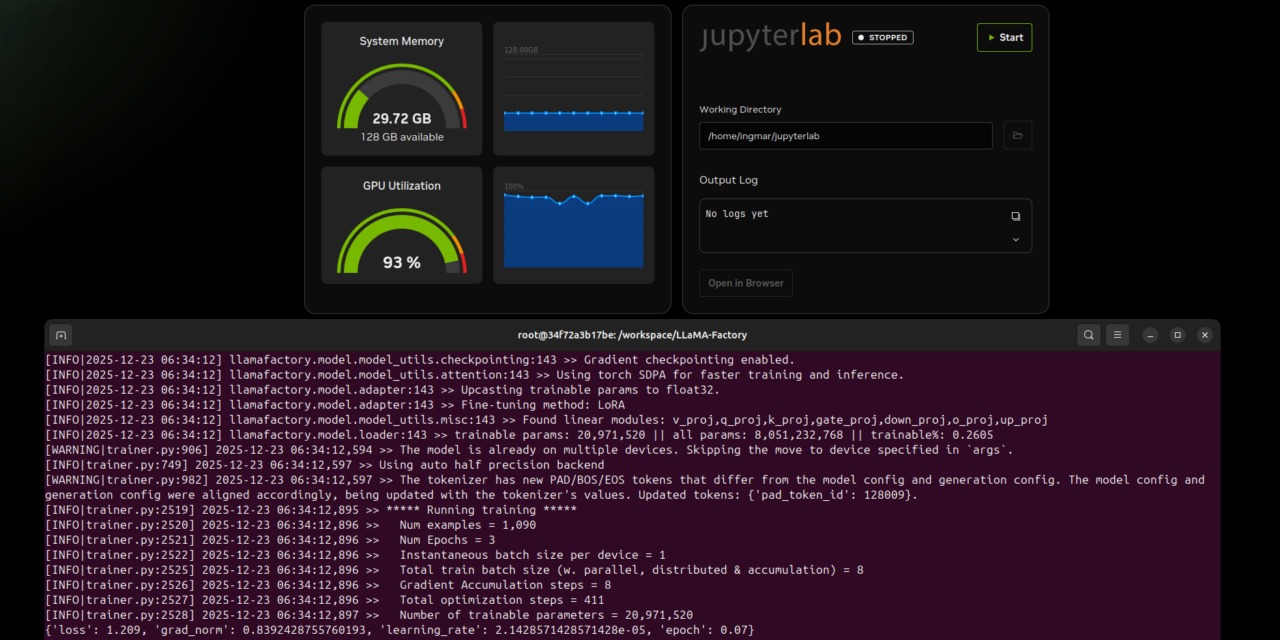
During training, checkpoints are saved regularly so that you can interrupt the training if necessary and continue later. For me, the running training in the terminal window together with the DGX dashboard looked as shown in the following image.
The training was successfully completed after about 40 minutes. The result then looked like this:
Here in the following image you can clearly see how the training went with the test data.
You can find the generated training data on your computer in the following path if you have followed the instructions so far.
Path: /home/<user>/LLaMA-Factory/saves/llama3-8b/lora/sft
Phase 8: Validate Training Results
After training, I check whether everything was successful and the checkpoints were saved:
Command: ls -la saves/llama3-8b/lora/sft/
You should see:
-
A checkpoint directory (e.g.,
checkpoint-21) -
Model configuration files (
adapter_config.json) -
Training metrics with decreasing loss values
-
A training loss diagram as a PNG file
The checkpoints contain your customized model and can be used later for inference or export.
Phase 9: Test Fine-Tuned Model
Now I test the customized model with my own prompt:
Command: llamafactory-cli chat examples/inference/llama3_lora_sft.yaml
This command starts an interactive chat with your fine-tuned model. You can now ask questions and see how the model behaves after training. For example:
Input: Hello, how can you help me today?
Here is the result of the short test as an image.
The model should give a response that shows the customized behavior. To end the chat, press Ctrl+C.
Phase 10: Start LLaMA Factory Web Interface
LLaMA Factory also offers a user-friendly web interface that allows training and management of models via the browser. To start the web interface:
Command: llamafactory-cli webui
The web interface starts and is reachable by default at http://localhost:7860. To make it reachable from the network as well, use:
Command: llamafactory-cli webui --host 0.0.0.0 --port 7862
Note: Please pay attention to how the Docker container was started and here to the parameter -p 7862:7860 so that the correct port is redirected into the container. In the output in the terminal it still says port 7860 but LLaMA Factory is reachable via port 7862.
Now you can access the web interface from any computer in the network. Open http://<IP-Address-AI-TOP-ATOM>:7862 in your browser (replace <IP-Address-AI-TOP-ATOM> with the IP address of your AI TOP ATOM).
If a firewall is active, you must open port 7862:
Command: sudo ufw allow 7862
In the web interface you can:
-
Train and fine-tune models
-
Upload and manage datasets
-
Monitor training progress
-
Test and export models
Note: The web interface runs in the foreground. To run it in the background, you can use screen or tmux, or start the container in detached mode and run the web interface there.
Phase 11: Configuring Automatic Restart of the Web-UI (Reboot-Proof)
To ensure that LLaMA Factory starts automatically after a system reboot without manual intervention, you can configure a Docker Restart Policy and use a combined start command. This turns your AI TOP ATOM into a reliable server. First, stop and remove the existing container:
Command: docker stop llama-factory && docker rm llama-factory
Now, restart the container with the --restart unless-stopped policy. We also use a bash command to ensure that the LLaMA Factory dependencies are registered before the Web-UI launches:
Command: docker run --gpus all --ipc=host --ulimit memlock=-1 -d --ulimit stack=67108864 --name llama-factory --restart unless-stopped -p 7862:7860 -v "$PWD":/workspace -w /workspace/LLaMA-Factory nvcr.io/nvidia/pytorch:25.11-py3 bash -c "pip install -e '.[metrics]' && llamafactory-cli webui --host 0.0.0.0 --port 7860"
The parameter -d (detached) runs the container in the background. You can check the logs at any time to monitor the startup process or the training progress:
Command: docker logs -f llama-factory
With this setup, the Web interface will be available at http://<IP-Address>:7862 every time you power on your Gigabyte AI TOP ATOM.
Phase 12: Export Model for Production
For productive use, you can export your fine-tuned model. This combines the base model with the LoRA adapters into a single model. To do this, run the following command in the Docker container:
Command: llamafactory-cli export examples/merge_lora/llama3_lora_sft.yaml
The exported model can then be used in other applications such as Ollama or vLLM. The export process can take several minutes, depending on the model size.
Troubleshooting: Common Problems and Solutions
In my time with LLaMA Factory on the AI TOP ATOM, I have encountered some typical problems. Here are the most common ones and how I solved them:
-
CUDA out of memory during training: The batch size is too large for the available GPU memory. Reduce
per_device_train_batch_sizein the configuration file or increasegradient_accumulation_steps. -
Access to gated repository not possible: Certain Hugging Face models have access restrictions. Re-generate your Hugging Face Token and request access to the gated model in the browser.
-
Model download fails or is slow: Check the internet connection. If you already have cached models, you can use
HF_HUB_OFFLINE=1. -
Training Loss does not decrease: The learning rate might be too high or too low. Adjust the
learning_rateparameter or check the quality of your dataset. -
Docker container does not start: Check if Docker is correctly installed and whether
--gpus allis supported. On some systems, the Docker group must be configured. -
Memory problems despite sufficient RAM: On the DGX Spark platform with Unified Memory Architecture, you can manually clear the buffer cache in case of memory problems:
sudo sh -c 'sync; echo 3 > /proc/sys/vm/drop_caches'
Exiting and Restarting the Container
If you want to leave the container (e.g., to free up resources), you can simply enter exit. The container is preserved because we did not use the --rm parameter. Your data in the mounted workspace directory is also preserved.
To get back into the container later, there are several possibilities:
-
Container is stopped: Start it with
docker start -ai llama-factory. This starts the container and connects you directly to the interactive session. -
Container is already running: Connect with
docker exec -it llama-factory bash. This opens a new bash session in the running container. -
After a restart: First check the status with
docker ps -a | grep llama-factory. If the container is stopped, start it withdocker start -ai llama-factory.
To check the status of all containers:
Command: docker ps -a
To stop the container (without deleting it):
Command: docker stop llama-factory
To completely remove the container (all data inside the container will be lost, but not in the mounted workspace):
Command: docker rm llama-factory
If you want to recreate the container after removing it, simply use the command from Phase 2 again.
Rollback: Removing LLaMA Factory Again
If you want to completely remove LLaMA Factory from the AI TOP ATOM, execute the following commands on the system:
First, leave the container (if you are still inside):
Command: exit
Stop the container (if it is still running):
Command: docker stop llama-factory
Remove the container:
Command: docker rm llama-factory
Then remove the workspace directory:
Command: rm -rf ~/llama-factory-workspace
To also remove unused Docker containers and images:
Command: docker system prune -f
To remove only containers (images are preserved):
Command: docker container prune -f
Important Note: These commands remove all training data, checkpoints, and models. Make sure you really want to remove everything before executing these commands. The checkpoints contain your customized model and cannot be easily restored.
Summary & Conclusion
The installation of LLaMA Factory on the Gigabyte AI TOP ATOM is surprisingly straightforward thanks to the compatibility with the NVIDIA DGX Spark Playbooks. In about 30-60 minutes, I set up LLaMA Factory and can now adapt my own language models for specific tasks.
What particularly excites me: The performance of the Blackwell GPU is fully utilized, and the Docker-based installation makes the setup much easier than a manual installation. LLaMA Factory provides a unified interface for various fine-tuning methods, so you can quickly switch between LoRA, QLoRA, and Full Fine-Tuning.
I also find it particularly practical that the training checkpoints are automatically saved. This allows for interrupting the training if necessary and continuing it later. The training metrics are also saved, so you can track the progress precisely.
For teams or developers who want to adapt their own language models, this is a perfect solution: a central server with full GPU power on which you can train models for specific domains. The exported models can then be used in other applications such as Ollama or vLLM.
If you have any questions or encounter problems, feel free to check the official NVIDIA DGX Spark documentation, the LLaMA Factory documentation, or the LLaMA Factory ReadTheDocs. The community is very helpful, and most problems can be solved quickly.
Next Step: Preparing Your Own Datasets and Adapting Models
You have now successfully installed LLaMA Factory and performed an initial training. The basic installation works, but that is just the beginning. The next step is to prepare your own datasets for specific use cases.
LLaMA Factory supports various dataset formats, including JSON files for Instruction Tuning. You can adapt your models for code generation, medical applications, corporate knowledge, or other specific domains. The documentation shows you how to prepare your data in the correct format.
Good luck experimenting with LLaMA Factory on your Gigabyte AI TOP ATOM. I am excited to see which customized models you develop with it! Let me and my readers know here in the comments.


The tutorial offers a clear and practical guide for setting up and running the Tensorflow Object Detection Training Suite. Could…
This works using an very old laptop with old GPU >>> print(torch.cuda.is_available()) True >>> print(torch.version.cuda) 12.6 >>> print(torch.cuda.device_count()) 1 >>>…
Hello Valentin, I will not share anything related to my work on detecting mines or UXO's. Best regards, Maker
Hello, We are a group of students at ESILV working on a project that aim to prove the availability of…